

How can I search for Events with a specific string?
Searching for Events with a Specific String
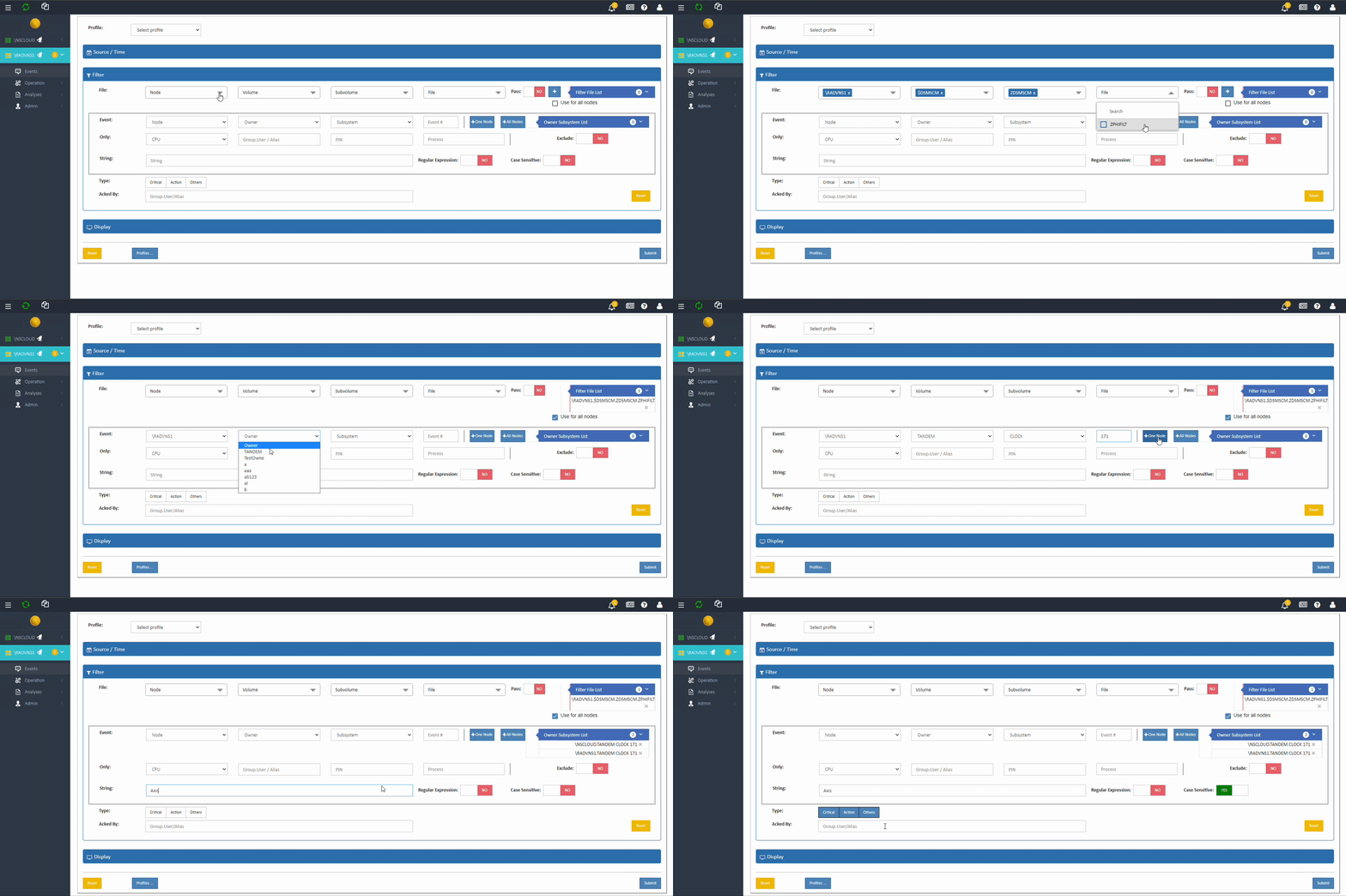
- File: Select one or more EMS Filter files (only one per Server). Follow the prompts to select Node, Volume, and Subvolume. List of available EMS Filter files will be displayed. Select one and click on + to add to your selected list.
- Pass (Yes/No). Controls whether Events that match the criteria in the Filter File are shown or suppressed. Yes – Show (Pass) events that match the criteria in the Filter File. No – Show events that DO NOT match the criteria in the Filter File. Default is No.
- Use for all nodes. Check this option if you want to use the same Filter File for all nodes if you want to search for something specific on all systems in the neighborhood or want to exclude something.
- Event: Progressively narrow down the Events you want displayed. After each specification, click on + to add to your selected list.
- Use this Owner, Subsystem for all nodes in the neighborhood.
- Option to exclude Owner, Subsystem from the selection.
- Only: Progressively narrow down the origin of Events.
- Exclude (Yes/No). Whether Events from these origins should be excluded. Default is No.
- String. Enter a string of characters (wildcards are allowed. Characters ‘: / ?& =’ are disallowed) to search for and match in the text of each message. Added support for Regex in the string field. The syntax supported follows the POSIX Extended Regular Expression standards.
-
- Regular Expression. Default Is No.
- Case Sensitive. Default is No.
-
- Type: Select any one or more to specify the type of Event severity.
- Acked By: Filters the events Acked (Acknowledged) by a specific user.
Regex-Based Filtering in WVP E Events
WVP E supports regular expression (regex) filtering to allow flexible inclusion or exclusion of events based on text patterns.
To help you match what you’re used to in tools like MOMI, here’s how you can use regex for:
- Include If ANY (OR)
- Include If ALL (AND)
- Exclude If ANY (OR)
- Exclude If ALL (AND)
1. Exclude if ANY (OR)
Exclude any message that contains any one of the listed strings.
Regex Example:
(JOB|ONLINEDUMP)This pattern will match (and exclude) messages that contain either "JOB" or "ONLINEDUMP".
2. Exclude if ANY (OR)
Exclude only messages that contain all the specified strings.
Regex doesn’t support true AND logic directly, but you can use lookaheads to simulate this behavior.
Regex Example:
(?=.*JOB)(?=.*ONLINEDUMP)This will match (and exclude) only messages that contain both "JOB" and "ONLINEDUMP" anywhere in the message.
3. Include if ANY (OR)
Include messages that contain at least one of the strings.
Regex Example:
(JOB|ONLINEDUMP)This works exactly the same way as “Exclude if ANY,” but you’d apply this regex in the include filter instead.
4. Include if ALL (AND)
Include only messages that contain all the specified strings.
Regex Example:
/ (?=.*SAFEGUARD)(?=.*SYSTEM)/This ensures that only messages containing both "SAFEGUARD" and "SYSTEM" will be included.
Notes on Syntax
-
(?=...)is a lookahead assertion — it ensures that the string contains the pattern inside, without consuming characters.|means OR — match any of the patterns separated by the pipe symbol.- These expressions are case-sensitive. Use
(?i)at the start to make it case-insensitive.- Example:
(?i)(JOB|ONLINEDUMP)
- Example:
Example: Exclude messages with “SAFEGUARD” and “$SYSTEM” (in either order)
(SAFEGUARD.*\$\s?SYSTEM)|(\$\s?SYSTEM.*SAFEGUARD)This matches messages that contain both “SAFEGUARD” and “$SYSTEM”, regardless of which appears first.
Tips for Users
-
- Be careful with spaces: use
\s?to optionally allow whitespace. - Escape special characters like
$with\$if you’re matching them literally. - Test your regex using tools like https://regex101.com/ before applying.
- Be careful with spaces: use